Connect Pulsora to your LLM in under five minutes
Add Pulsora to Claude or ChatGPT once, sign in with your Pulsora account, and ask about your sustainability data in plain English. Your LLM sees only what your Pulsora role allows.
Before you start
You need your Pulsora login and this server address:
https://prod.pulsesg.net/mcp/mcpIf you have connected another tool to your LLM before, you already know the steps: add a custom connector with this address and sign in.
Connect Pulsora to Claude in four steps
Pro, Max and Free plans
- 1
In Claude, click Customize in the left sidebar, then Connectors. Click + Add and choose Add custom connector.

- 2
Set the name to Pulsora and the server address to
https://prod.pulsesg.net/mcp/mcp, then click Continue. Claude checks the server and marks two settings as Detected: Sign in now under Authentication and Register automatically under OAuth client. Leave both as detected and click Add.

- 3
Pulsora now appears under your connectors. Click Connect, sign in with your Pulsora account in the window that opens and approve access.

 Screenshot to come: Pulsora approval screen
 - 4
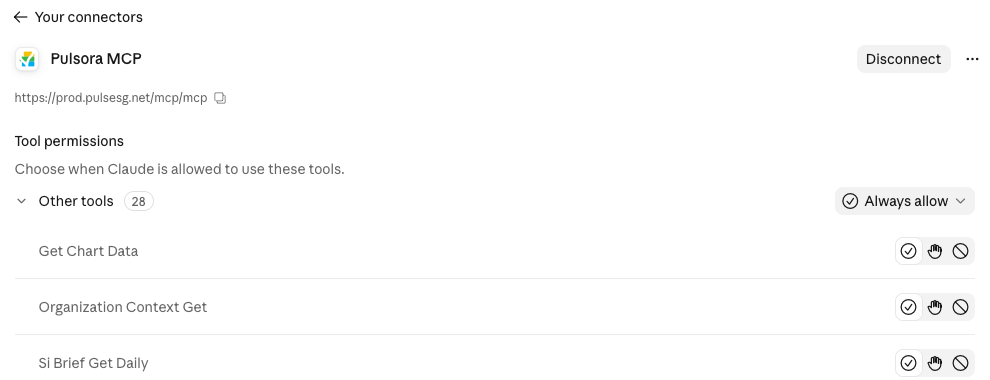
When sign-in completes, Pulsora shows a Disconnect button and its list of tools, which means it is connected. Claude may show the name the server gives itself, Pulsora MCP.
On a Team or Enterprise plan, an Owner first adds Pulsora once under Admin settings, Connectors, Add, Custom, Web. Each member then connects with their own Pulsora login. Free plans allow one custom connector.
Connect Pulsora to ChatGPT in three steps
All plans with custom servers enabled
- 1
In ChatGPT, click Plugins in the left sidebar. Click Add and choose Add custom MCP server.
Screenshot to come: ChatGPT, Open Plugins - 2
Set the name to Pulsora, keep Server URL selected and enter
https://prod.pulsesg.net/mcp/mcp. Leave authentication as OAuth.Screenshot to come: ChatGPT, Enter the Pulsora details - 3
Tick I understand and want to continue, click Create as a plugin, then sign in with your Pulsora account and approve access.
Screenshot to come: ChatGPT, Create and sign in
On Business and Enterprise workspaces, your ChatGPT admin may need to allow custom MCP servers first.
Ask your first question
Start a new chat, make sure Pulsora is switched on, and ask, for example: “Using Pulsora, summarize our Scope 1 and 2 emissions for the latest reporting year.” Your LLM asks for your approval before it uses Pulsora, unless you choose to always allow it.
Free for Pulsora users until December 31
No setup costs. If you would like a free onboarding consultation, contact your Pulsora account team.
Guides for Gemini and Copilot are coming soon.


